
The Post List 1 widget displays blog posts in a clean list-style layout.
It is perfect for showcasing latest news, trending posts, or categorized articles in a vertical format.
With flexible query options, layout settings, pagination, and multiple styling controls, this widget helps design a professional-looking blog list section.
How to Use
- Open a page or template with Elementor editor.
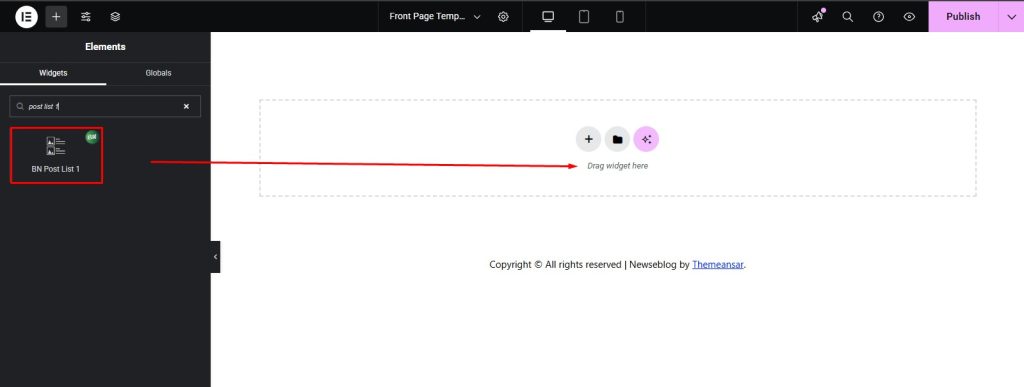
- Search for “Post List 1” in the widget panel.
- Drag and drop the widget into the desired section.
- Configure Post Query and Post Settings to control which posts display and how they appear.
- Add Buttons and Pagination if required.
- Customize the look with Styling Controls for complete design flexibility.
Content Settings
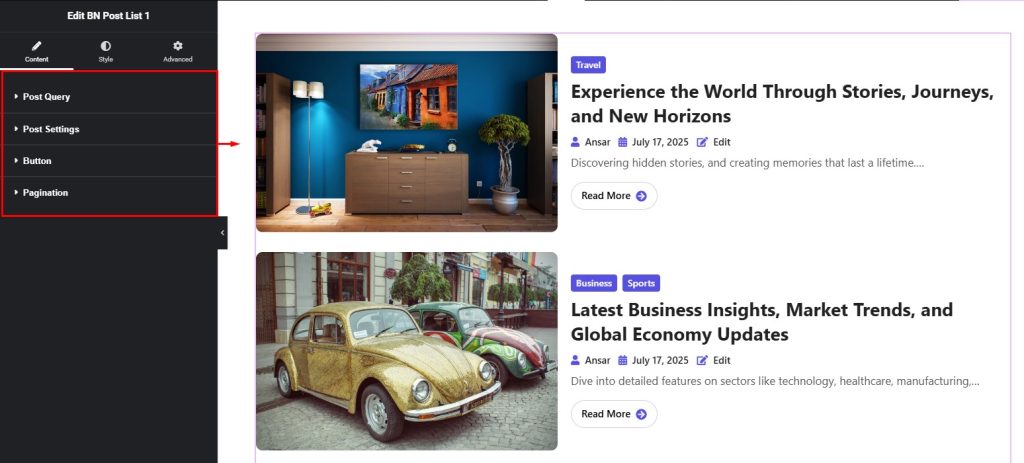
- Post Query → Choose layout style, categories, tags, number of posts, excerpt length, order by options, order type, category style, and control title length (in lines).
- Post Settings → Adjust number of columns, column spacing, row spacing, image on/off toggle, image resolution, image position, category icon, and post content visibility (category, title, meta, excerpt, button). Also manage Post Meta (author, date, edit, etc.).
- Button → Configure button title, select icon, set icon position, and adjust icon gap.
- Pagination → Select pagination style (none, numbers, numbers with dots, numbers with prev/next, or combined), and adjust alignment.
Styling Controls
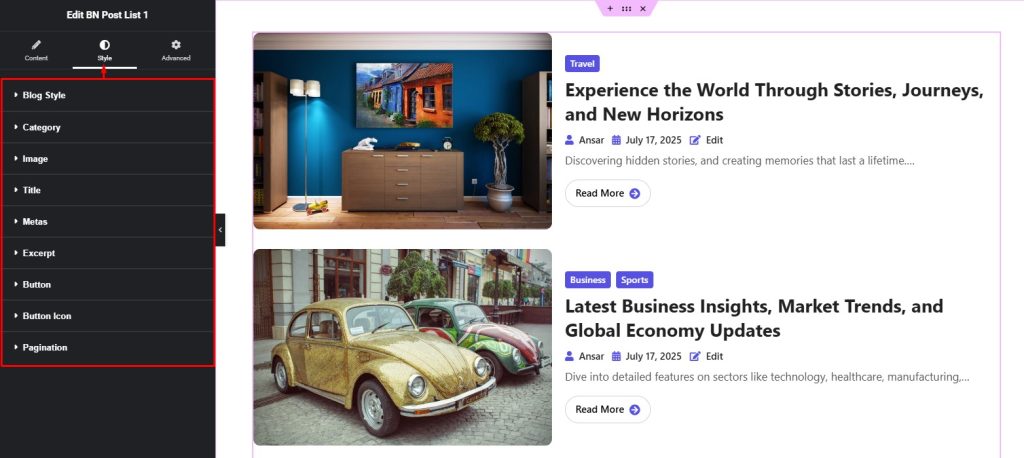
- Blog Style → Control background, padding, margin, border, radius, and box shadow for the entire post list section.
- Category → Customize typography, color, hover effects, spacing, and style options.
- Image → Set image size, border, radius, hover effects, and shadow.
- Title → Adjust typography, color, hover color, text shadow, and spacing.
- Metas → Style post meta (author, date, comments, etc.) including typography, color, icon color, spacing, and alignment.
- Excerpt → Typography, color, and margin settings for post excerpt.
- Button → Background, color, hover color, border, padding, margin, radius, and shadow for post buttons.
- Button Icon → Control icon size, color, spacing, and hover effects.
- Pagination → Typography, color, hover color, spacing, background, border, radius, and alignment for pagination controls.
Pro Tip
- Highlight category and meta info with subtle colors for a professional magazine-style look.