
Before installing Ansar Elements, make sure the Elementor plugin is installed and activated on your website.
Follow these simple steps:
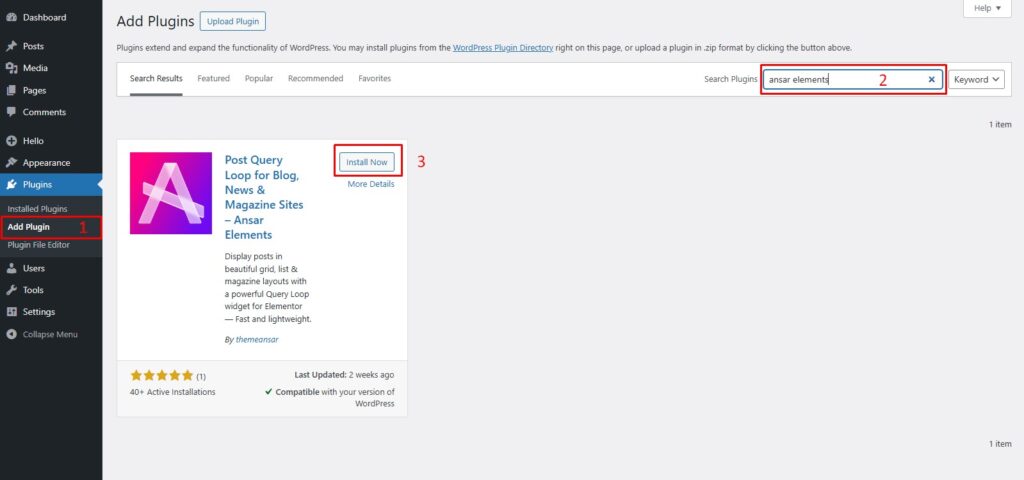
Step 1: Install Ansar Elements
- Login to your WordPress Dashboard
- Go to Plugins → Add New Plugin
- In the search box, type Ansar Elements
- Click Install Now
Step 2: Activate the Plugin
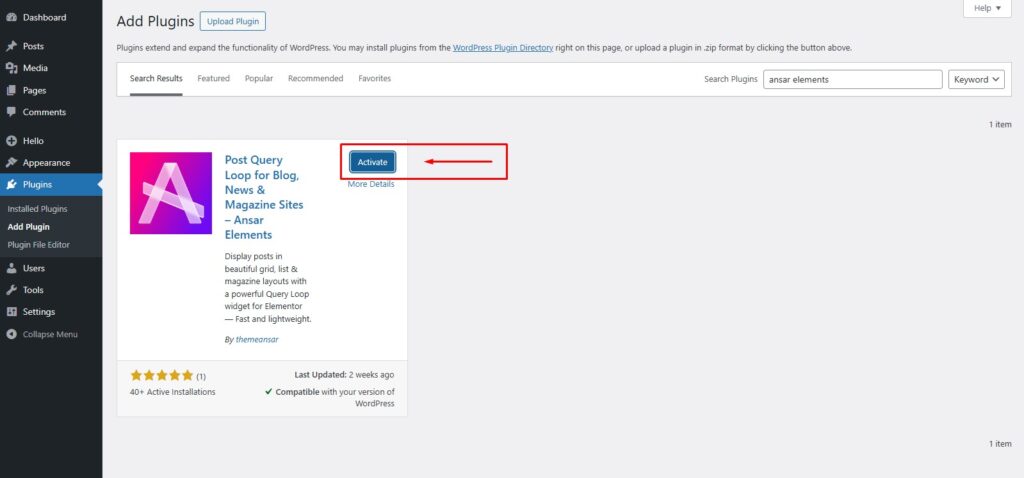
After installation is complete:
- Click the Activate button
- Ansar Elements will now be activated on your website
Step 3: Freemius Welcome Screen
After activation, you may see a Freemius integration screen.
You have two options:
Allow
- Receive product updates
- Get important announcements
- Access helpful tips and improvements
Skip
- Continue using the plugin normally
- All plugin features remain available
Note: Ansar Elements does not collect sensitive or personal information.
📊 Ansar Elements Dashboard
After activation, go to:
WordPress Dashboard → Ansar Elements
Here you will find the main dashboard sections:
🏠 Home
Helpful resources for getting started:
- Documentation
- Video Tutorials
- Support
- Feature Requests
- Latest Updates
🧩 Widgets
Manage plugin widgets easily:
- Enable or disable widgets
- Bulk activate/deactivate widgets
Important: Click Save Settings after making changes.
🏗️ Site Builder
Create and manage website templates visually using Elementor:
- Header
- Footer
- Front Page
- Single Post
- Archive Page
- Search Page
- 404 Page
- Templates
🚀 Starter Sites
Import ready-made website templates:
- Browse starter templates
- Preview layouts
- Import with one click
- Customize with Elementor
💡 Pro Tip
If you’re a new user, start with Starter Sites and customize them instead of building everything from scratch. This saves time and helps you learn faster.